Wednesday, 15 January 2014

Help My Computer is Making Strange Noises

Is your computer making strange high pitch whirling sounds, or clicking noises? Generally this is an indication that part of your computer is about to fail or has already failed.

Warning: Opening your computer can be dangerous if you don't know what you're doing. Make sure to unplug your system, and ground yourself before touching anything inside of it. If you don't feel comfortable making these repairs yourself, then hire a professional.

Below are possible sources of noises from your computer:
  • Hard Drive: If you start your computer, and right away you start to hear some strange sounds (such as high-pitch whirling or clicking, listen to the examples on this page) from your hard drive. This is generally an indication that it has failed or is about to fail. If you can access the data on your drive, I would back it up to another location (such as an external hard drive) as soon as possible.
  • Power Supply, System, or CPU fans: If you start to hear strange noises from your system fans, this could be an indication that your fan is dirty or has bad ball bearings. If this happens turn off your system and clean the the fans or replace them as necessary. If you want to see what happens when your CPU loses cooling, check out the following video. If the fan that is giving you problems is in your power supply, do not try to replace it. Just replace the whole power supply.

Fiber Optic Internet Service


Do you remember the day that you switched from your slower analog dial-up Internet service which peaked out 56.6Kbps (which it could never reach) to your newer digital 'high-speed' Internet access (which can reach speeds between 1-3Mbps and sometimes higher). Then after you switched, you may have wondered how you ever could have lived without it.

You may need to get ready again to ask yourself 'how you ever lived without it'. Verizon recently started offering a new high speed Internet service called FiOS (Fiber Optic Service) for a little while now. Verizon's FiOS offers connection speeds from 15Mbps for about $45 a month and 30Mbps for $199. For a complete list of prices and speeds check out the following web page.

Finding and Removing Installed Updates

Do you want to find out what hot fixes have been installed on your computer during the automatic updates that generally happen once a month? There's an easy way to check out which updates have been installed, and if necessary remove them.
  • Open the Control Panel folder, and then double-click the 'Add or Remove Programs' applet.
  • In the 'Add or Remove Programs' dialog, click the checkbox 'Show updates' at the top (which is not checked by default).
  • Scroll down in the list, until you see 'Windows XP - Software Updates'. From here you will see an installed list of updates.
If you need to uninstall one of these updates because its causing a problem, all you have to do is press the Remove button next to the update.

Monday, 13 January 2014

Software: Mounting ISO Images Using a Virtual CD-ROM Drive


Have you ever had the need to burn an ISO image to a CD disk? If you don't know what an ISO image is, its an exact copy of a CD-ROM that is stored in a file so that it can be put on a hard drive, or transmitted across a network to another computer.

To turn an ISO image back into a CD, you need a blank CD-ROM disk, a CD-Writer drive, and a program that can read the ISO image and burn it to the drive. This process is not complex, but I will save it for another article.

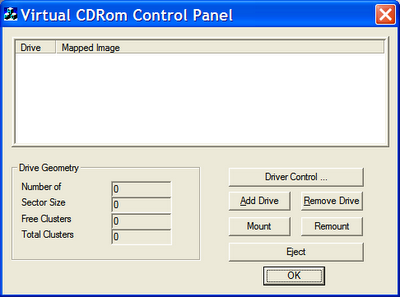
Well if you're like me I generally won't burn a CD-ROM unless I have to, and if I do I use CD-RW so I don't have a million half used CDs sitting around the house. Although, if you have an ISO file that you need to get a file off, or a program to install check out Microsoft's Virtual CD-ROM Control Panel.

This control panel allow you to mount the ISO image by creating a virtual CD-ROM Drive. As far as the operating system is concerned this will look like a real CD-ROM drive. Although in reality its just the ISO image that is being treated like a real disk.

Notes:
  • This program only runs under Windows XP
  • This software is unsupported by Microsoft, and contains no setup file.
  • The interface is very basic, so don't expect a polished tool.
  • Make sure to read the README.TXT


Best Free Online Storage Sites (1GB and More)

There are literally hundreds of storage sites out on the Internet that offer capacities that range from a few megabytes to a few gigabytes. I have visited a lot of them, and created a list of the best sites.

Only sites that offered 1GB or more of storage were listed, anything less was too small. If you need more storage (and fewer restrictions) many of these sites offer premium plans for a fee.

The sites are placed into two categories based on the type of storage they offer:

Temporary Hosting SitesAre you looking for a place to temporarily hold a large file so that you can email it, or to host content (such as media) for your web site or blog. Then check out the list of sites below, they allow you to quickly upload just about any file where it can be access by people whom you make its link available to. The file you upload will generally automatically be deleted after a specific amount of time has passed.
Note: The amount of storage, and how long the file can be stored will vary, check the site's storage policy for specific details.
Online File Storage
Are you looking for a site that specializes in online file storage, and won't automatically delete your files if you have not used them in a while. These sites are great for holding backups of your files, or acting as a transfer point for moving data from one computer to another computer (such as from home to work and back).
Note: Most of these sites have some type of transfer limits (i.e.: how much you can upload or download) which vary from site to site.

Create a Virtual Office (on the Cheap)

Do you need setup a home office to run a small business or work from home, and don't want to spend a lot of money? Using your computer, and a high speed Internet connection you can replace a lot of older technologies.

Making/Receiving Phone Calls & Voicemails
Did you know that you can use Skype as a low-cost way of making and receiving calls from your computer. You can also receive voicemail when you're busy or off-line. All you need to get started is a headset with a microphone. There are no setup fees, monthly fees, or the need to purchase additional hardware to use it. You only pay for the phone calls you make or receive.

Below is a list of services that Skype offers:
  • SkypeIn: Receive calls via your computer from a personal phone number
  • SkypeOut: Make calls from your computer to other phones and mobiles, all over the world.
  • Voicemail Skype: Receive voicemail messages when you're busy or offline.
If you don't want to use your computer to make phone calls, consider using a VoIP service like Vonage. It allows you to use your regular phones that are already in your house. Although you will have a setup fee, monthly fees, and new hardware costs for going this route. Contact the VoIP provide that you want to use for more information about their service.

There are several VoIP service providers, I only touched the surface of this subject with the most popular ones. I encourage you to shop around for the best deal and services that you want. If you just need a public phone number to receive voicemail, there's a service called PrivatePhone that offers a free voice mailbox.

Web and E-mail Services
There are several free e-mail and web hosting providers, but it doesn't look professional to have your business email address look like: johndoe2016@aol.com. If you want a web site, I would also not recommend using free web hosting services. You don't want your web site URL looking like: http://www.geocities.com/samswidgets1980/. No one will believe that you're a legitimate business.

Domain registers like GoDaddy offers low cost web hosting and domain registration, you can also get a personalized e-mail address. For example, if your business name was Sam's Widgets, and you purchased a domain like samswidgets.com you could create an e-mail address like sam@samswidgets.com. You can also use the domain for your web site, like www.samswidgets.com

For a list of available services and fees, check out the following page.

Sending and Receiving Faxes
Being able to send faxes these days has become less important when e-mail is so readily available. Although it's still a popular technology option for sending certain types of business documents especially if they have a signature on it.

My computer has a Fax modem, but I still need access to an analog phone to use it. Then if I need to capture image of a document, I will need a scanner. Scanners are cheap these days, but if you don't have a need for one too often then they're not really worth it. There are also several good multi-function printers available, you might want to consider getting one of these if you want to save space and are only going to use it once in a while.

If you don't have an analog phone line, but have a need to send and receive faxes there is a service called eFax. They allow you to send and receive faxes for a fee. They also offer a free service which allows you to receive faxes for free via email, from a personal non-local number.

There is another service called faxZERO that allows you to send a fax for free to anywhere in the U.S. and Canada.

Postal Services
If you need to send packages, all the major package carriers offer free home and business pickup services, including the US Postal service (USPS). The USPS offers a service called Click-N-Ship for printing postage and labels, then you can request a pickup for the following day. You also might want to consider purchasing a scale to avoid overpaying postage.

If you want a special address to have all your business mail sent, you have one of two choices. You can purchase a P.O. Box from the local USPS office, or you can use a private mailbox from one of the many businesses that offer this service (such as: Mailboxes Etc.).

There are a few advantages to having a private mailbox vs. P.O. Box. One, you can get packages delivered to a P.O. Box. Two, the address looks like an actual street address rather then some postal box number.

Windows XP: Updating Device Drivers

Peripheral manufactures regularly update the device drivers for their hardware (such as: video cards, printers, etc.) . They generally will do this to fix known problems or add new features. Device drivers are programs that tell the OS how to use a device that is attached to it.

These updated drivers are generally available on the manufacturer or Microsoft's web site for download (Note: it's always best to start at the manufacturer's web site first). After you download the updated drivers, you will generally have to extract the file from a compressed archive to install them. It is always a good idea to read the drivers installation instructions before installing it.

Another way to update the device driver is to use the 'Update Driver' button for the peripheral in the 'Device Manager' console.
  • From the Start menu, right-click on 'My Computer' and select Manage.
  • From the 'Computer Management' console select the 'Device Manager'
  • Find the of the device you want to update, and , double-click on it.
  • Click the Driver tab.
  • Press the 'Update Driver' button to open the Hardware Update Wizard
  • Select if the system can connect to Windows Update to search for the driver, and then press the Next button. (Select Yes if you want to check Windows Update, select No if you already have the driver)
  • Select 'Install the software automatically' if you want the system to make its best guess on how to update the driver or choose 'Install from a list or specific location' if you already have the updated driver. Then press the Next button.
  • Windows will then search for an updated driver and notify you if the updated driver has been found.
  • Press the Finish button when done.